Best Practice Analyzer
The Best Practice Analyzer checks your model against a set of rules and lists every object that violates one. It runs in the background as you work, so the count of outstanding issues is always current, and it can fix many of the issues it finds for you.
A rule is a condition written against the model's objects, plus a severity and a description. Rules cover the things that are easy to get wrong and expensive to discover later: calculated columns that should be pushed to the source, relationships on columns of mismatched data types, measures without a format string, objects left visible that should be hidden.
Press F10, or click the issue count in the main window, to open the Best Practice Analyzer. Background scanning can be turned off under Tools > Preferences > Best Practice Analyzer (File > Preferences in Tabular Editor 2).
Where to go next
| Page | What it covers |
|---|---|
| Using the Best Practice Analyzer | Working with the results: the issue list, going to an object, ignoring an object or a rule, and generating or applying a fix script. Also the Manage BPA Rules window and the rule collections it lists. |
| Built-in BPA Rules | The curated rule set shipped with Tabular Editor 3, its categories, and how to turn individual rules off. |
| BPA Sample Rules Expression | Writing your own rule expressions, with worked examples. |
The rest of this page covers where rules come from and how to bring in rules that live outside the model.
Rule collections and precedence
Rules reach a model through collections, listed in the top half of the Manage BPA Rules window. Using the Best Practice Analyzer describes each collection and where its rules are stored.
If the same rule ID appears in more than one collection, precedence runs from the top of the list downwards: a rule defined within the model beats a rule with the same ID defined for the local machine. That's what lets you override a shared rule to account for a convention specific to one model.
Select (Effective rules) at the top of the list to see the rules that actually apply after precedence is resolved. Each rule shows which collection it came from, and a rule struck through is one that a higher-precedence collection has overridden.
Adding a rule collection
Beyond the built-in, model, user and machine collections, you can attach rule files from elsewhere. Collections added this way take precedence over rules defined within the model, and if you add several you can move them up and down to set their order.
Click Add... in the Manage BPA Rules window and choose one of:
- Create new Rule File creates an empty
.jsonfile at a location you pick, ready for you to add rules to. - Include local Rule File attaches a
.jsonfile of rules you already have. - Include Rule File from URL attaches rules served over HTTP or HTTPS, for example the standard BPA rules published by Microsoft. Collections loaded from a URL are read-only.
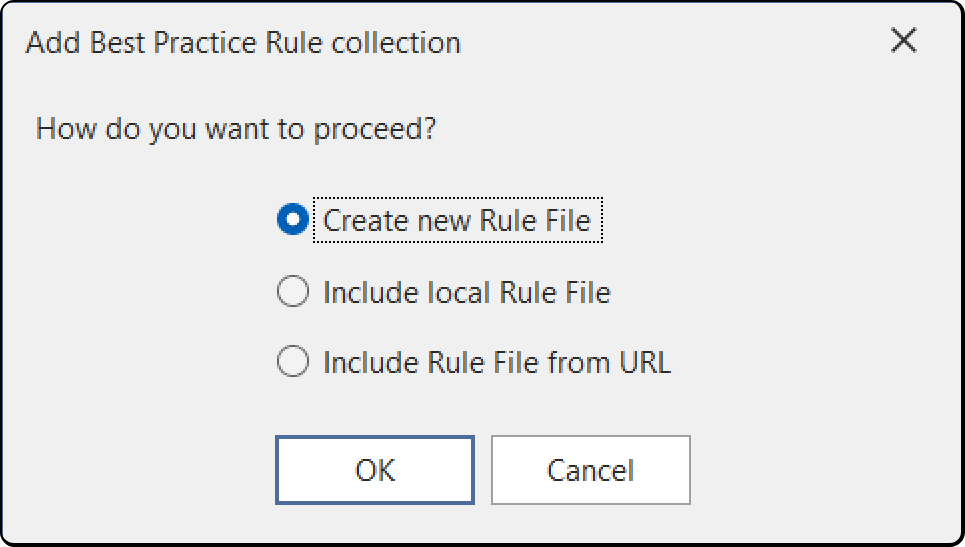
For the two file options you can store the reference as a relative path, which is worth doing when the rule file lives in the same repository as the model. A relative reference only resolves when the model itself was loaded from disk, since a model loaded from a server has no working directory to resolve against. A file on a different drive or a network share has to be referenced absolutely.
You can add, edit, clone and delete rules in any collection you have write access to. Move to... moves or copies the selected rule into another collection.
Placeholders in rule descriptions
A rule's description is shown as a tooltip against each object that violates it, so it's worth making it name the object it's talking about. Three placeholders are substituted when the description is displayed:
| Placeholder | Expands to |
|---|---|
%object% |
A fully qualified DAX reference to the object, where one applies |
%objectname% |
The name of the object |
%objecttype% |
The type of the object |