Connect to Databricks
Start from Model > Import tables... and choose a Databricks source. Every authenticator needs the Host and the HTTP Path of the SQL warehouse or cluster, both of which Databricks shows on the connection details page of the compute resource.
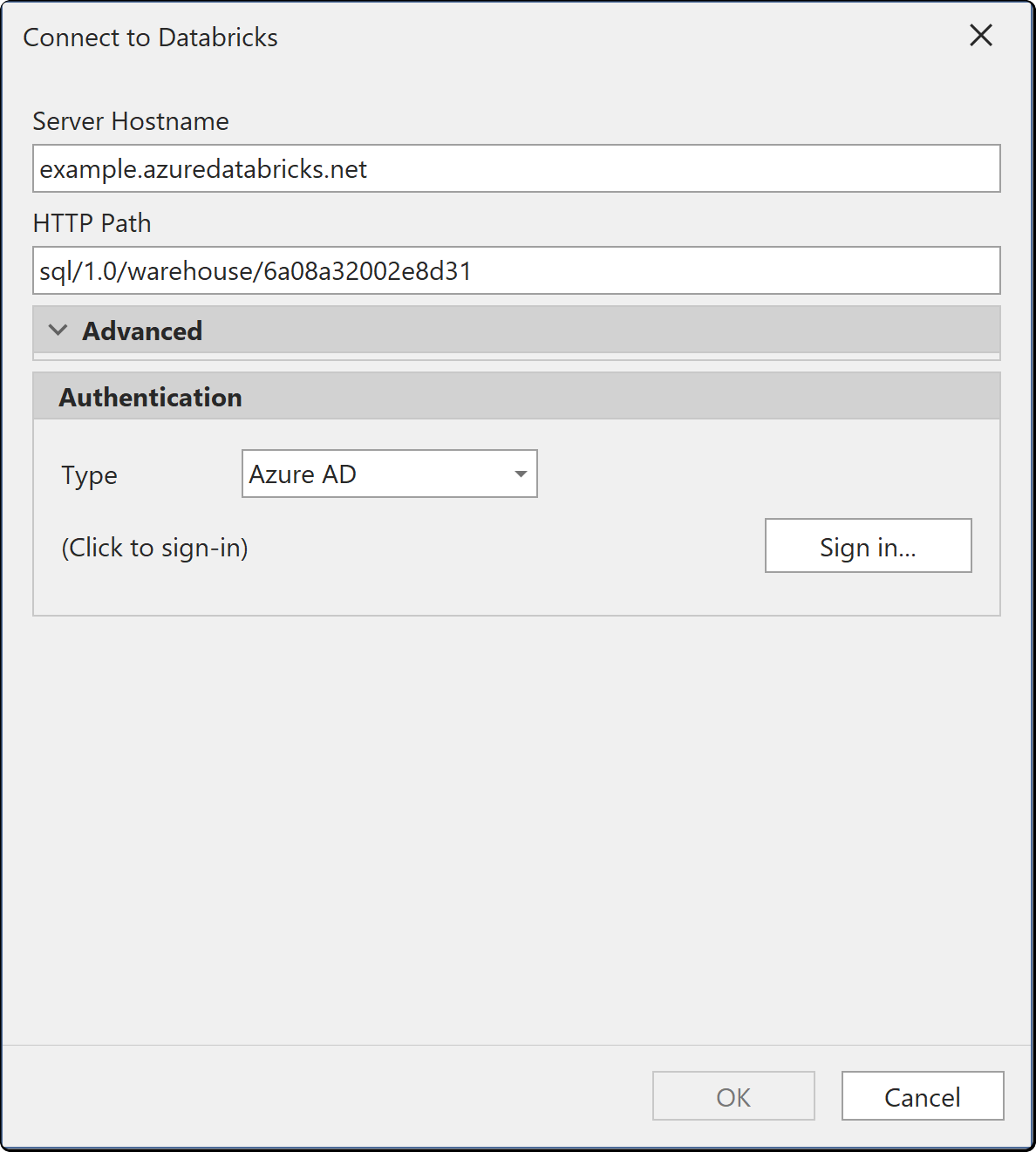
Authenticators
| Authentication | What you supply | Reconnects unattended |
|---|---|---|
| Access Token | A Databricks personal access token | Yes, until the token expires |
| Username / Password | User name and password | Yes |
| Azure AD | A Microsoft Entra ID sign-in | Azure Databricks only |
| OAuth (OIDC) | A browser sign-in | No |
| OAuth (M2M) | A service principal client ID and secret | Yes |
Note
Azure AD is offered only for Azure Databricks. On a Databricks workspace hosted anywhere else, use one of the other four.
For a scheduled refresh, OAuth (M2M) is the usual choice: it is a service principal, so nothing expires with a person leaving.
Where the credentials are stored
Credentials you enter here are saved per user and per model in the user options file (.tmuo) beside the model, encrypted so that only your Windows account can read them. They are not part of the model metadata, so they are not committed to source control and a colleague opening the same model supplies their own.
The generated M expression names the server and the object only. It never contains a password, a token or a key.