DAX Editor
The DAX Editor is the centerpiece of Tabular Editor 3.
It comes in three different flavours:
- Expression Editor Used for making quick changes to singular DAX expressions on objects in the TOM Explorer.
- DAX Query (Connected feature) Used for writing DAX queries in order to retrieve data from the connected instance of Analysis Services / Power BI.
- DAX Script Used for viewing and editing DAX expressions and basic properties across multiple objects in a single document.
All three flavours support the same operations in terms of keyboard shortcuts, syntax highlighting, code assist, etc.
Code Assist features
The main enabler of productivity in Tabular Editor 3's DAX Editor, is its Parameter Info and Auto-Complete features. Collectively, these are known as Code Assist features (other vendors use the term "IntelliSense").
Parameter Info provides details about the DAX function and its parameter at the position of the cursor. The information is displayed in a tooltip above the cursor. Hit [Esc] to close the tooltip and [Ctrl+Shift+Space] to display it.
Auto-Complete provides context-sensitive suggestions as you type, in a dropdown box. You can use the keyboard to navigate the items in the dropdown and hitting [Enter] or [Tab] will insert the selected item into your code. You can hit [Esc] to close the dropdown and [Ctrl+Space] to open it.
These features can also be invoked through the context menu of the editor.
DAX calltips update as you cycle syntax alternatives using the Up/Down arrows.
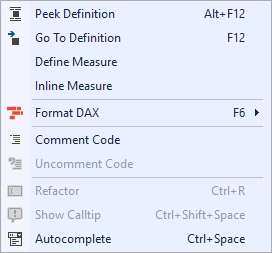
Most aspects of code assist can be configured under Tools > Preferences > Text Editors > DAX Editor > Code Assist.
Peek Definition
While the cursor is over an object reference such as a variable or a measure reference, hit [Alt+F12] to display an inline editor with the definition of that object, below the cursor. This is useful when you want to see the DAX code of a referenced object without leaving the current position in the document.
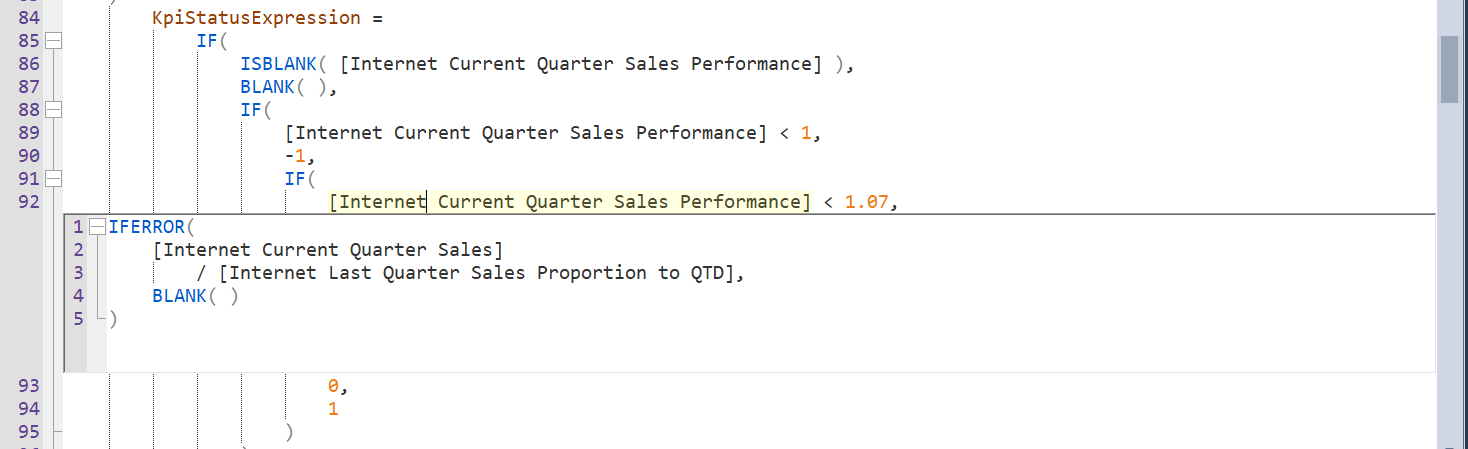
Use the Esc key to close the Peek Definition panel again.
Go To Definition
Instead of peeking, we can also jump straight to the location where the referenced object is defined. To do this, hit [F12]. If the referenced object is not defined within the current document, this operation will jump over to that object in the TOM Explorer. If needed, you can navigate back using [Alt+Left Arrow].
Define Measure
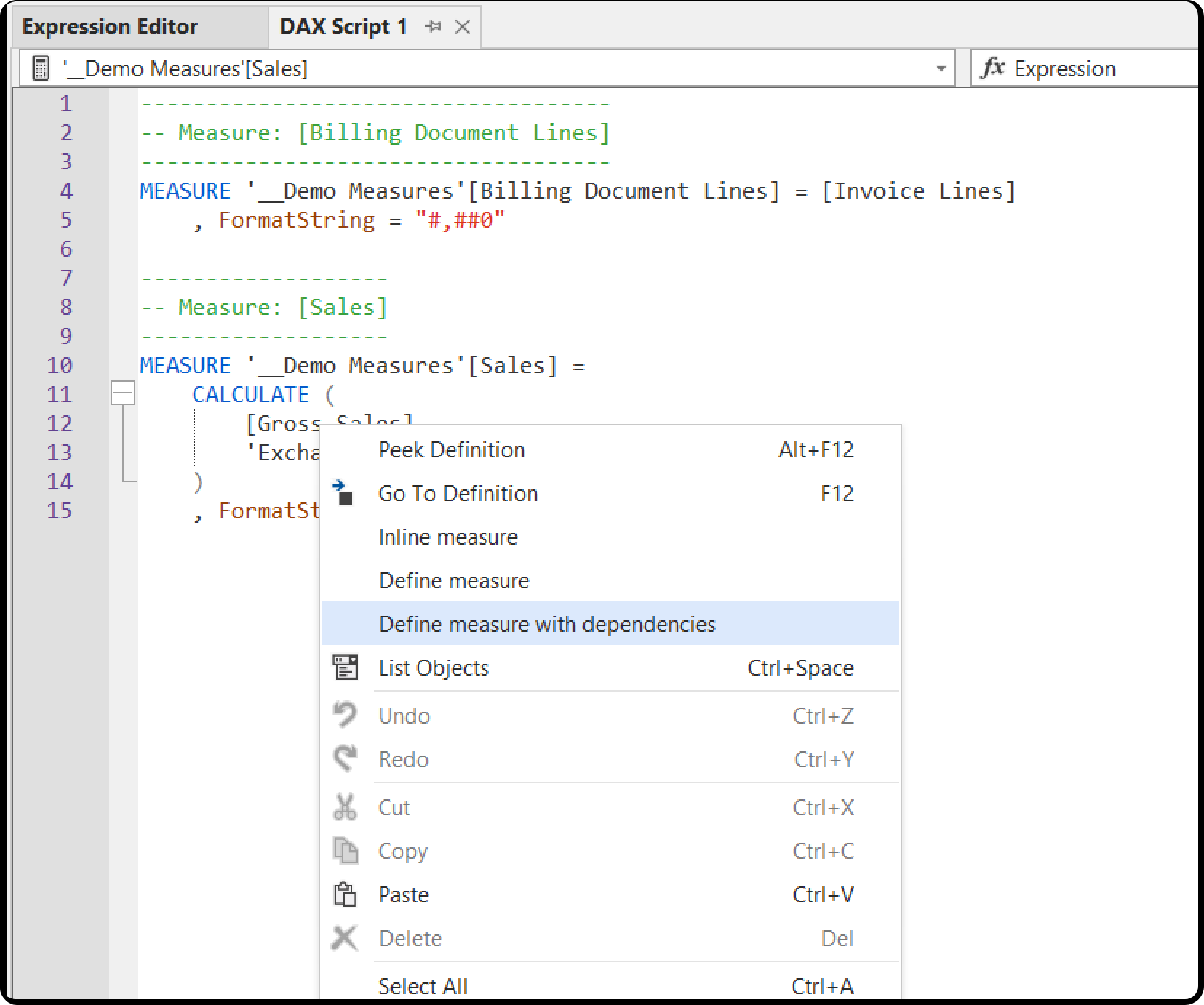
For DAX scripts and DAX queries, it is sometimes useful to include the definition of a measure that is referenced elsewhere in the code. The Define Measure feature lets you do that when the cursor is over a measure reference. You may also choose the Define Measure with Dependencies option if you want to include all downstream measure references as well.
Inline Measure
If you want to bring the definition of a measure into the current document, the Inline Measure feature lets you do just that. Right-click a measure reference in the DAX editor and choose Inline Measure.
A measure reference implicitly turns the current row into a filter before the measure's expression is evaluated. Pasting the expression in as-is would therefore change the result, so when the reference sits inside a row context, for example as the second argument of an iterator such as SUMX or FILTER, Tabular Editor wraps the inlined expression in CALCULATE to preserve that behavior:
// Before using inline measure on the [Margin] measure
SUMX ( 'Sales', [Margin] )

// After using inline measure on the [Margin] measure
SUMX ( 'Sales', CALCULATE ( 'Sales'[Amount] - 'Sales'[Cost] ) )
The wrap is only added where it can make a difference. The expression is inserted unwrapped when:
- the reference is not inside a row context, including when it already sits inside a
CALCULATE( ... )of its own - the measure's expression reads nothing from the model (a constant, a reference to another measure or a call to a function such as
TODAY()). A reference to a table, a column, a calendar or a user-defined function does count as reading from the model, and does get the wrap - the expression already performs the transition itself, through a
CALCULATE( ... )orCALCULATETABLE( ... )with no filter arguments. With a filter argument the wrap is still added, because filter arguments are evaluated before the transition
If the measure's expression cannot be analyzed, the wrap is added, on the principle that a wrap that was not needed is harmless where a missing one is not.
Format DAX
The DAX Editor in Tabular Editor 3 automatically formats your code as you type, i.e. fixing casing of functions and object references, adding proper indentation and spaces between parentheses, etc. All of this can be configured under Tools > Preferences > Text Editors > DAX Editor > Auto Formatting.
However, sometimes it is necessary to format the entire document. This can be done by hitting [F6] or [Shift+F6] if you prefer more frequent line breaks. For DAX Queries, you may also use [Alt+F6] to reformat the code to always add commas at the front of a line, which is useful when debugging.
Refactoring
If you want to change the name of a variable or extension column, you can use the Refactor option (Ctrl+R) while the cursor is located on the variable or extension column reference. This will select all instances of that object, allowing you to rename it everywhere at once.
Configurable keyboard shortcuts
The DAX Editor and code editors in general are highly configurable and support a lot of additional commands for quickly and productively editing code. You can view all of these commands, as well as modify and assign keyboard shortcuts under Tools > Preferences > Tabular Editor > Keyboard.